Virtual Manager
What’s New in Virtual Manager 1.9.13
Close the day with Cash Book, record sales and payments from Home, and print A4 reports with clearer totals. Here are the changes in 1.9.13 and the recent updates it builds on.
- Cash Book and Money
- Quick Entry
- A4 reports

Close the day with Cash Book and Money
Enter opening cash and bank balances, record deposits and transfers, and check the closing balance for the date you choose. Count the drawer against the book and save a correction with a reason. The Money page shows cash and each bank account together, and Cash Book can print a day or a date range. See the daily cash book guide.
Review the day and save entries from Home
Choose a date on Home to see money in, money out, closing cash, stock sold and the profit breakdown. Open Hisab Mel for the closing-cash calculation. Use New entry to reach Quick Entry for a sale, money received, a purchase, a supplier payment, an expense, salary or a bank movement. On a PC, use Ctrl+N to open it.
The Windows layout keeps the main sections in a sidebar, with customer and supplier forms beside their lists when the window is wide enough. Under Settings → Home screen, choose Shop with stock, Khata only or Services to set which business sections appear on Home.
Record partial payments and carry over opening balances
Wholesale sales and purchases accept a partial or full payment in Pay. Excess payments stay on the customer or supplier account as an advance. Add a dated opening balance when moving a customer or supplier over from an old register. All Accounts shows receivables and payables together, with a printable pending balances sheet.
Use the optional Note on a sale line, purchase row, customer payment or supplier payment to keep a reference with the saved entry. Item notes can appear on sale and purchase receipts, and sale and purchase reports include the relevant notes. See the sales and purchases guide.
Record stock sales, non-stock items and services
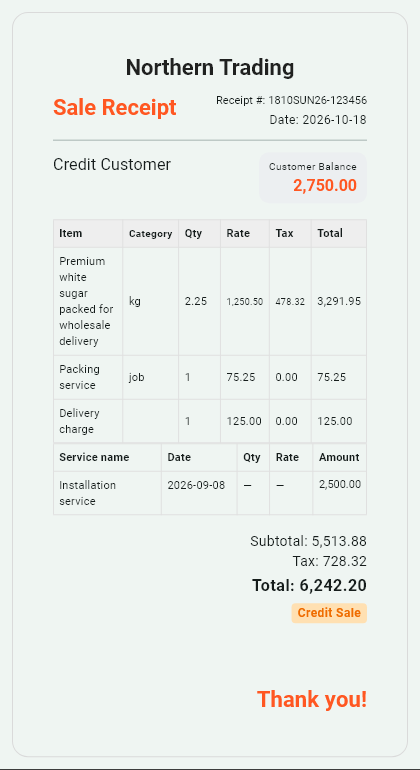
Normal sales take stock from inventory using FIFO. Independent sales use a name, quantity and rate without taking stock. Service rows use a service name, a service date and an amount, without stock or quantity. A credit service can still leave a customer balance.
For example, a trader can sell a stocked item, add a non-stock item and charge for delivery on the same sale. Only the stocked item reduces inventory. The service date appears on the receipt, while its revenue follows the sale date in reports.
The default is Normal only. Owners can enable Independent and Service in Settings → Sales Types. Existing lines keep their type. All three work in standalone mode. Signed-in staff use the types their business allows. See how to bill for parts and services together.
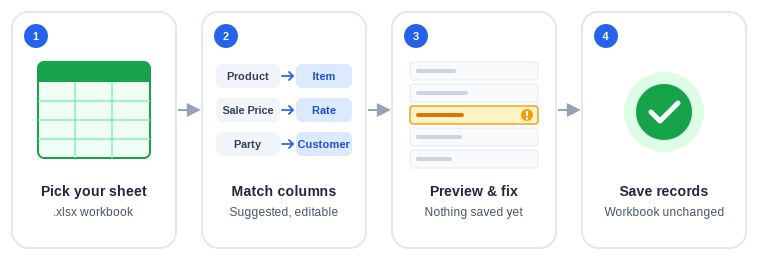
See which Excel rows need a decision
Resolve import errors from the highlighted cell or issue list. Correct the value, leave the row out, or explicitly choose Independent or Service where appropriate. Services require a positive Line Amount and can have their own date. Normal and Independent require quantity and rate; the importer no longer fills missing values for those fields automatically.
Review partial or repeated payments before saving. Purchases can map freight or similar charges to linked expenses so the supplier balance reflects what is owed to the supplier. The original workbook stays unchanged. See the Excel data import guide.
When an Items workbook has no stock date column, you can choose one date for those rows. The importer starts with today and warns you to check it. For opening stock, use the date you counted it.
Read the stock ledger like a spreadsheet
Sheet view puts one stock movement on each row, with adjustable columns and totals for quantity in, quantity out and closing stock, grouped by unit when needed. Detail and Summary remain available. Item cards identify whether a record came from opening stock, a purchase or direct entry, and show its added date and any later inventory edit date. See the inventory and stock ledger guide.
Preview and print redesigned A4 reports
Cash Book, pending balances, the ledger, stock reports, sale and purchase statements, salary statements and the attendance register share an A4 portrait layout with ruled tables, totals and page numbers. Adjust the preview from 50% to 200% before you print or share it. Each report type remembers its preview size on that device.
Record attendance and pay without closing the month first
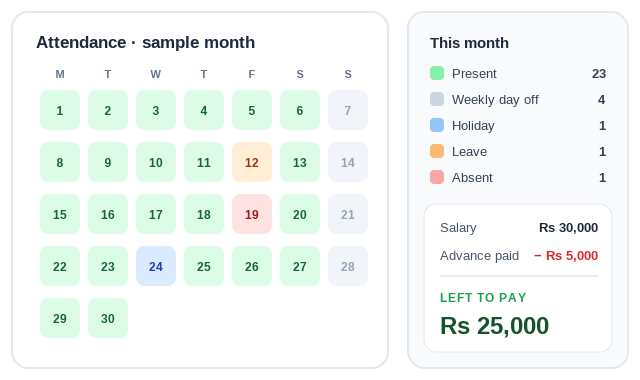
Mark attendance, set working hours and days off, and record advances and salary payments during the month. Export the attendance register as PDF or Excel. Staff using their own phones can check in via nearby Bluetooth or the manager’s QR code in a connected workspace. See the attendance and payroll guide.
Set staff roles and organise long lists
Save custom roles, choose what staff can view or edit, and restrict eligible roles to their own entries or a retail customer. Staff can sign in with a QR code or one-time code and submit deletion requests for review. If a cloud edit conflicts with a newer record from another device, open Offline Work to review it.
Sort customers and suppliers by name, group wholesale customers by agent, or group sales and purchases by day.
Design or scan your business stamp
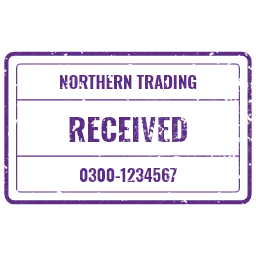
Choose a stamp shape and font, preview it on a receipt, or clean up a photo of a real stamp to use on receipts and PDFs. Export an actual-size A4 PDF or a 1200 dpi PNG for a stamp maker.