 Virtual Manager
Sales and Purchase App for Wholesale and Retail
Record what you sold, what you bought and who still owes money. Virtual Manager brings retail and wholesale records, customer credit and supplier balances into one app for Windows and Android.
- Customer khata
- Supplier balances
- PDF statements

Record credit sales and payments in your shop khata
Choose a customer and save the sale with its date and items. On a wholesale sale, use Pay for a partial or full payment, or leave it empty for credit. A payment above the sale total is recorded as an advance on the customer account. Retail sales and Quick Sell use Cash or Credit.
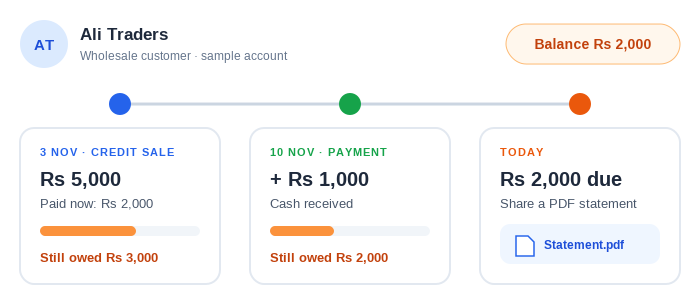
For example, on a PKR 5,000 sale with PKR 2,000 paid today, PKR 3,000 is still owed. When the customer brings another PKR 1,000, record a payment and check that the remaining balance is PKR 2,000. You can share a receipt or use a PDF sale statement to review a period together.
Keep supplier balances and stock receipts separate
Record what you bought and whether it should enter inventory. Use Pay to record what you paid the supplier on that row. An amount above the row total becomes a supplier advance. Link freight or handling as an expense on the purchase row so it can be tracked with the stock in the stock ledger while the supplier balance reflects the amount owed to that supplier.

Record payments from Home and print account statements
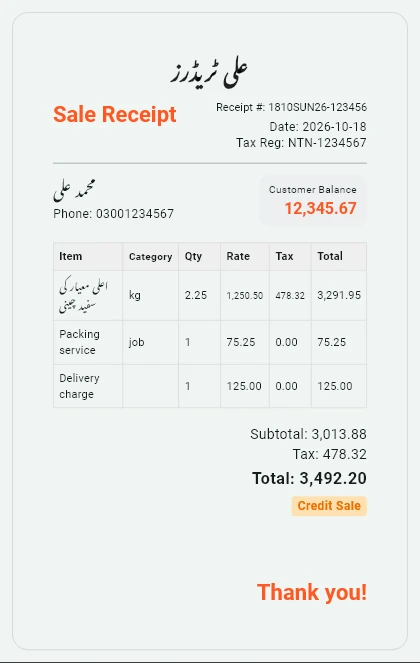
Choose Received or Paid supplier in Quick Entry to post later payments. Add an optional note to a payment, sale line or purchase row to keep a reference with the record. Item notes can appear on receipts, and sale and purchase statements include the relevant notes.
Share a PDF statement when a customer or supplier wants to compare records for a period. Use the daily cash book for the day’s cash and bank movements and All Accounts for outstanding balances.
Use the app offline or share access with staff
Start in offline mode without an account. Shopkeepers who want more than a credit-only khata app can keep purchases, stock and receipts in the same app. For a shared business workspace, sign in and set up cloud sync and staff permissions.
If you have records in Excel, preview and import your existing records. For repairs, labour or delivery fees, see how to add service charges to a bill.