 Virtual Manager
Offline Inventory and Stock Management Software
Know what came in, what went out and what you have left. Virtual Manager connects your purchase records, sales and stock ledger so you can follow wholesale, retail or factory stock on Windows or Android, even when you’re offline.
- Works offline
- FIFO stock costing
- Stock report PDF
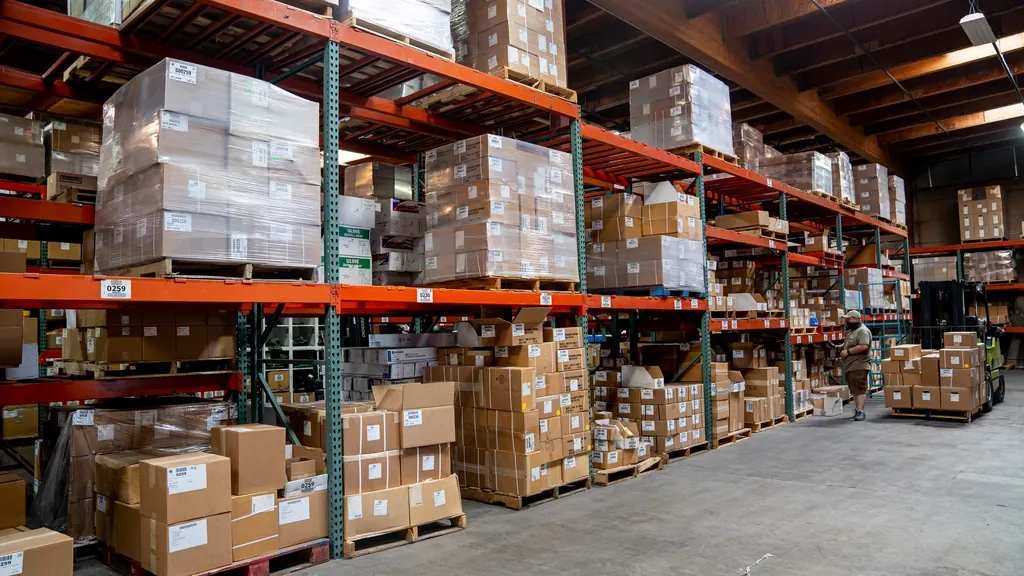
Set up a stock item and record a purchase
- Create an item in Inventory. Use the same unit when you buy and sell it. If you already have stock, enter the opening quantity, unit cost and date you counted it.
- Record a supplier purchase with the date, quantity and cost. Add the purchase to inventory when the goods should increase your stock.
- When you sell a stocked item, select it from inventory. Check the available quantity before saving.
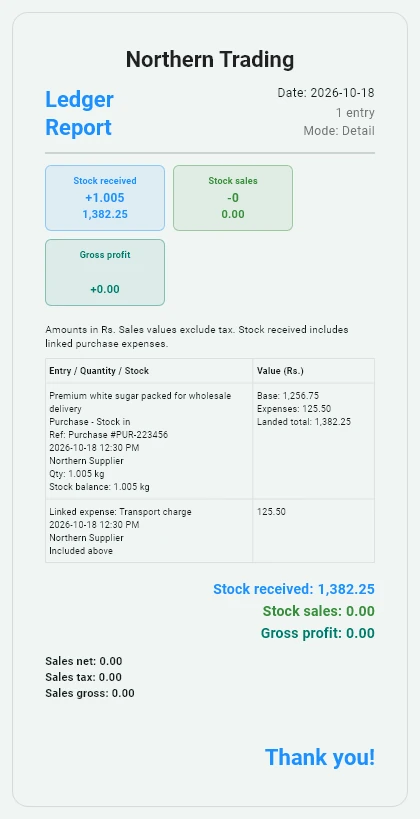
- Open the stock ledger to review stock received and used. Use the stock report to check opening and closing balances for the period.
How FIFO affects the cost of a sale
First in, first out (FIFO) uses the oldest available purchase batch first when the app calculates stock cost. Suppose your shop buys 10 bags at PKR 100 each and later buys 10 more at PKR 120. Selling 12 bags uses 10 from the first batch and two from the second. The stock cost is PKR 1,240, and eight bags remain in the second batch.
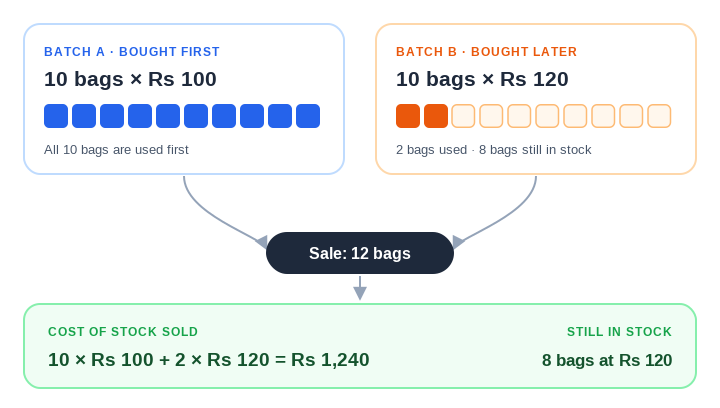
This matters when supplier prices change. You can check what stock cost the business alongside sales totals instead of valuing every sale at the latest purchase rate.
Review stock with Detail, Summary and Sheet views
Use Detail to trace a movement back to its receipt, Summary to review grouped figures, or Sheet to scan one movement per row. Resize columns on screen to see longer names. Sheet totals show quantity in, quantity out and closing stock. When items use different units, totals are shown per unit, such as 10 bags and 5 kg. Export the report as an A4 PDF.
Find the reason for a stock difference
If the stock on the shelf differs from the app, check recent purchases, sales and adjustments in the ledger before entering a correction. A purchase you chose to keep out of inventory will not increase the stock count. A supplier payment settles a balance; it does not receive more stock.
Item cards show whether an item came from a purchase, opening stock or direct entry, plus when it was added or edited in Inventory. You can correct an opening stock row while its quantity is still unused.
Moving over from a spreadsheet?
Start with a short list of items and compare your recorded counts with a physical count. The Excel import guide explains how to review mapped columns before saving. If you’re recording stock alongside credit sales and supplier payments, see the sales and purchase guide.