 Virtual Manager
Import Sales, Purchases and Inventory from Excel
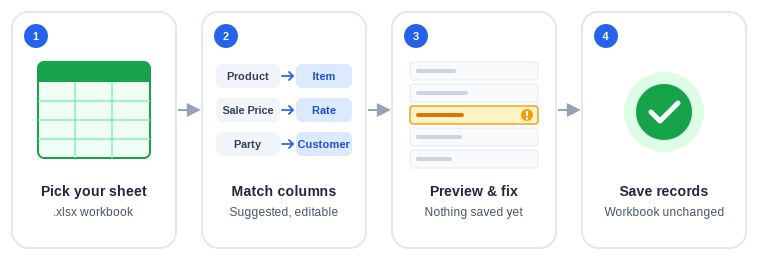
Bring in records you already keep in Excel. Choose the workbook, match its columns to the app’s fields and review the result before saving.
- .xlsx workbooks
- Preview before saving
- Original file unchanged

Prepare one clean sheet first
Save a copy of your workbook as an .xlsx file. Use one row for headings, with descriptive names such as Customer, Item, Quantity and Rate. Use consistent names and units for the same product. Keep notes and grand totals outside the rows you intend to import.
Map columns and preview the import
- Open the importer, choose the record type and select the workbook, worksheet and heading row.
- Check the suggested column matches. A Sale Price column might map to Rate; an invoice total should not map to a per-unit rate.
- Review highlighted rows and check the date, quantity, rate and party on a few transactions you know. Make corrections before confirming.
- After saving, open the affected sales or purchases and spot-check totals. For inventory purchases, compare quantities with the stock ledger.
Check customer and item names before you save
For example, if one sheet calls a customer “Ali Traders” and another says “Ali Trading,” decide whether those names refer to the same account. Compare the contact details and sample rows rather than joining them on a similar spelling alone. The same check helps prevent goods of different sizes from becoming one stock item.
Bring in opening stock and customer balances first
For opening stock, map item, quantity and unit cost. Use a Stock Date column or choose one date for the rows that lack it. The importer starts with today and warns you to review that date. Use the day you counted the stock, then import purchases and sales with their own dates.
For your customer and supplier accounts, map Opening Balance and Opening Balance Date when bringing across amounts from another register. Spot-check a few entries in the digital khata before importing the rest of your history.
Resolve sales issues and review payments
Stocked sales start as Normal. Correct a flagged cell, leave it out, or explicitly choose Independent for a non-stock item or Service for an amount-based charge. Fill any required quantities and rates for Normal and Independent lines. For service charges, map Line Amount and, if available, Service Date. A blank Service Date uses the sale date.
Map Paid Amount when the workbook shows what was collected or paid. Review partial payments and overpayments before saving. On purchases, freight can be imported as a linked expense while the supplier balance stays tied to the supplier’s charge.